Overview
A common use case in the HData platform is proactive monitoring of new regulatory information. HData allows users to:
- Specify the companies, topics, and data sources that you need to monitor
- Receive an email or in-platform notification when new information on these topics is published in a docket
For example, if you wish to be notified when the term “vegetation management” appears in a file that also mentions "San Diego Gas & Electric Company" in either the California PUC or California Office of Energy Infrastructure Safety catalogs, you can customize a notification for this information. You'll begin receiving notifications for new files that match your criteria as soon as you create your notification.
HData users have historically known this platform functionality as alerts. With the addition of saved searches to the HData platform, users can enable notifications for any saved search in the HData Library. This allows users to streamline the process of setting up notifications, rather than creating alerts separately from the information for which you're actively searching.
Saved searches and notification functionality replace the previous method of setting up alerts. Rather than viewing alerts in Toolbox > Alert Manager, users will now find all saved searches and notifications in Data Hub > My Drive > Saved Content.
This article outlines how to:
- Create a new saved search and notification
- View notifications in the HData platform or via email
- Edit saved searches and notifications
Create a New Saved Search and Notification
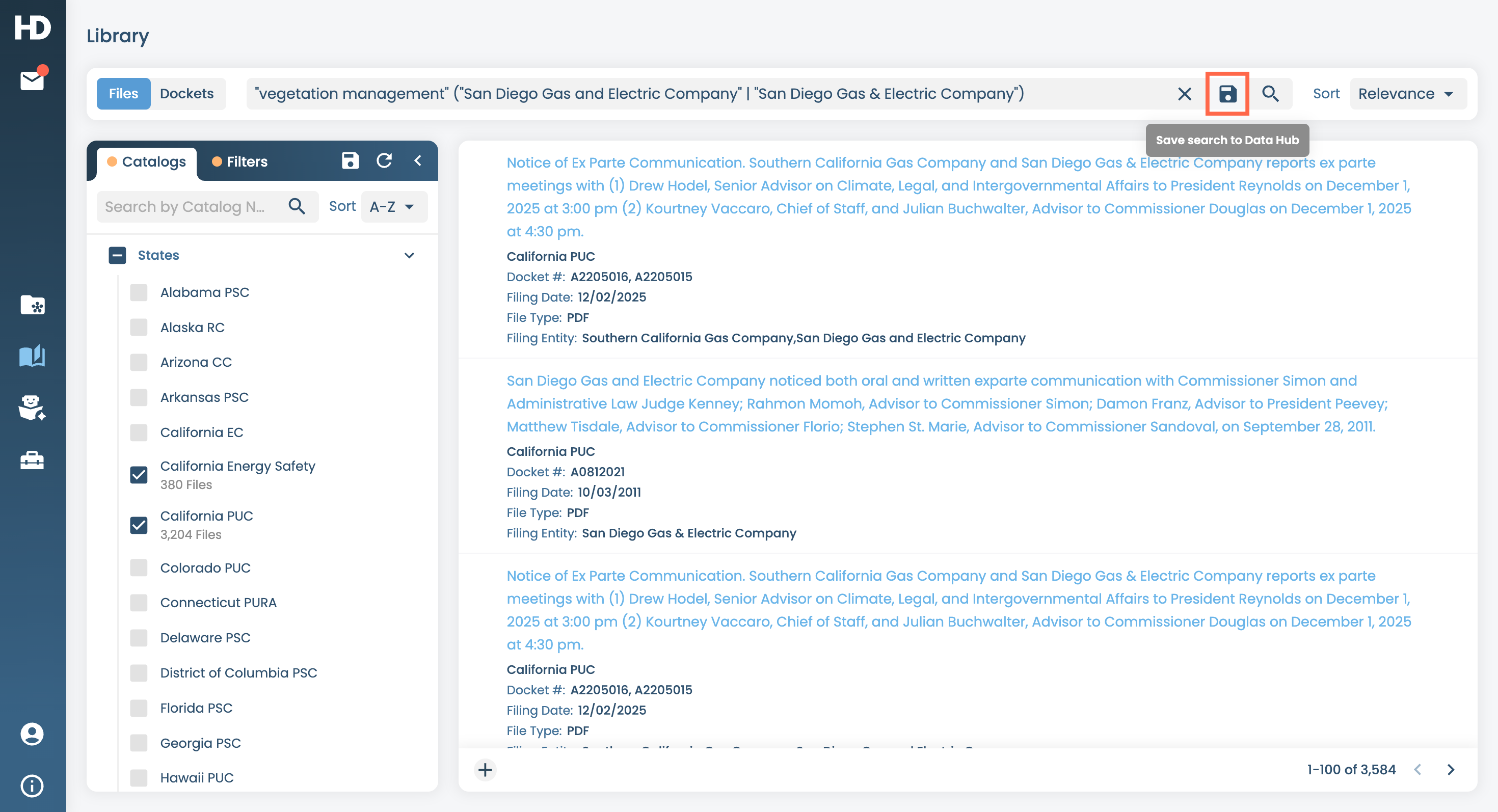
In the HData Library, enter your search keywords, filters, and data catalog selections. You'll immediately see the files that meet your search criteria. From here, you can edit or refine your search as needed. If you'd like to return this search in the future without needing to re-enter your search criteria, simply save your search.
In this example, we've performed a search for files in the California PUC or California Office of Energy Infrastructure Safety catalogs that contain the exact phrase "vegetation management" and either the phrases "San Diego Gas & Electric Company" or "San Diego Gas and Electric Company." Save this search by selecting the disk icon labeled Save search to Data Hub.
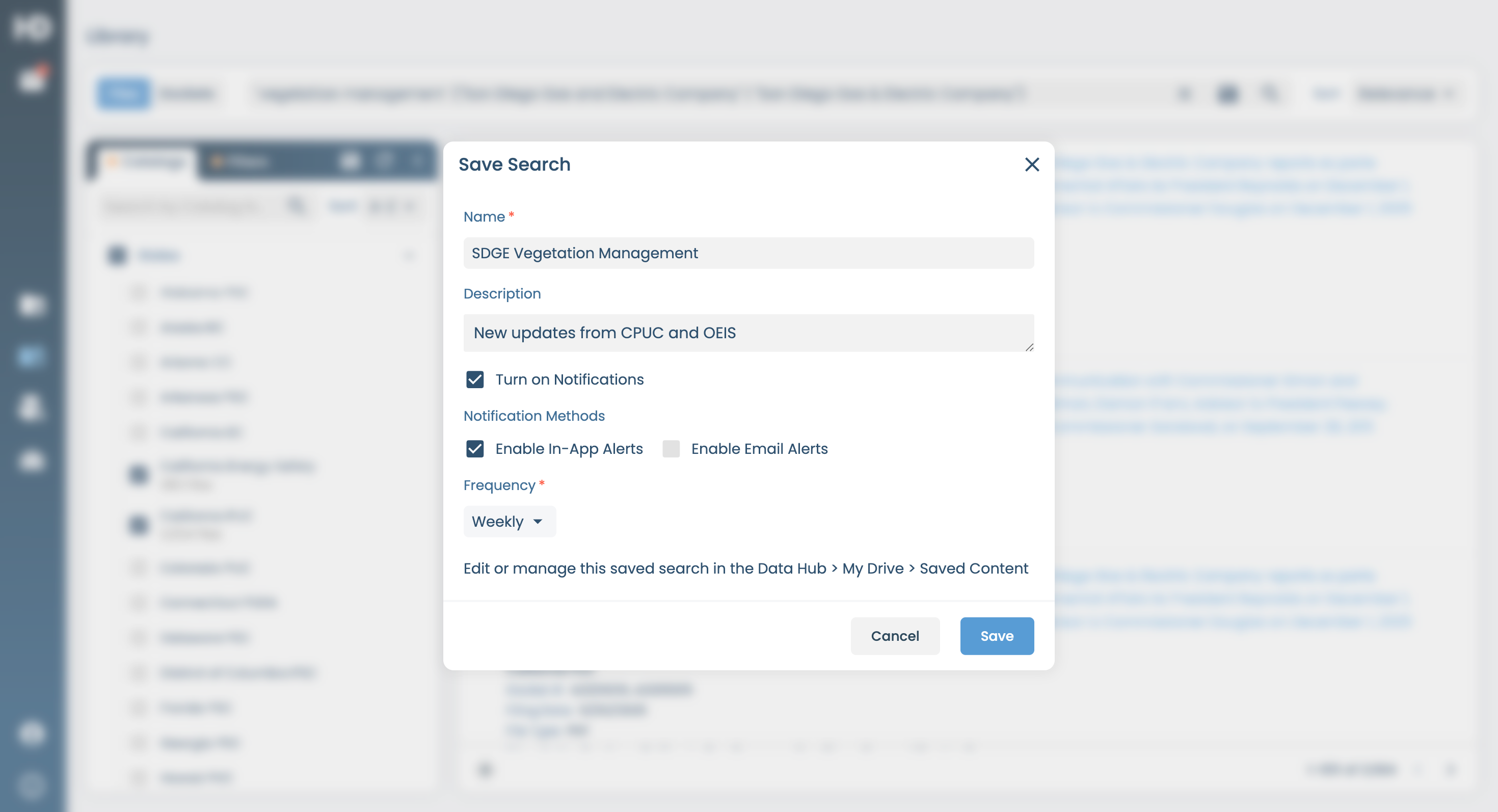
You will then have the option to name your search and create a brief description of the search. To set notifications, select the box Turn on Notifications. Notifications can be received in the HData platform or via email. Select where you want to receive notifications, and on what frequency:
- Weekly: One digest delivered weekly of all notifications that match your criteria
- Daily: One digest delivered daily of all notifications that match your criteria
- Individual: One notification every time your criteria is matched
Next, save your selections. You will begin to receive notifications as soon as any file is added or updated that meets your specific saved search criteria.
View Notifications in the HData Platform or Via Email
HData Platform Notifications
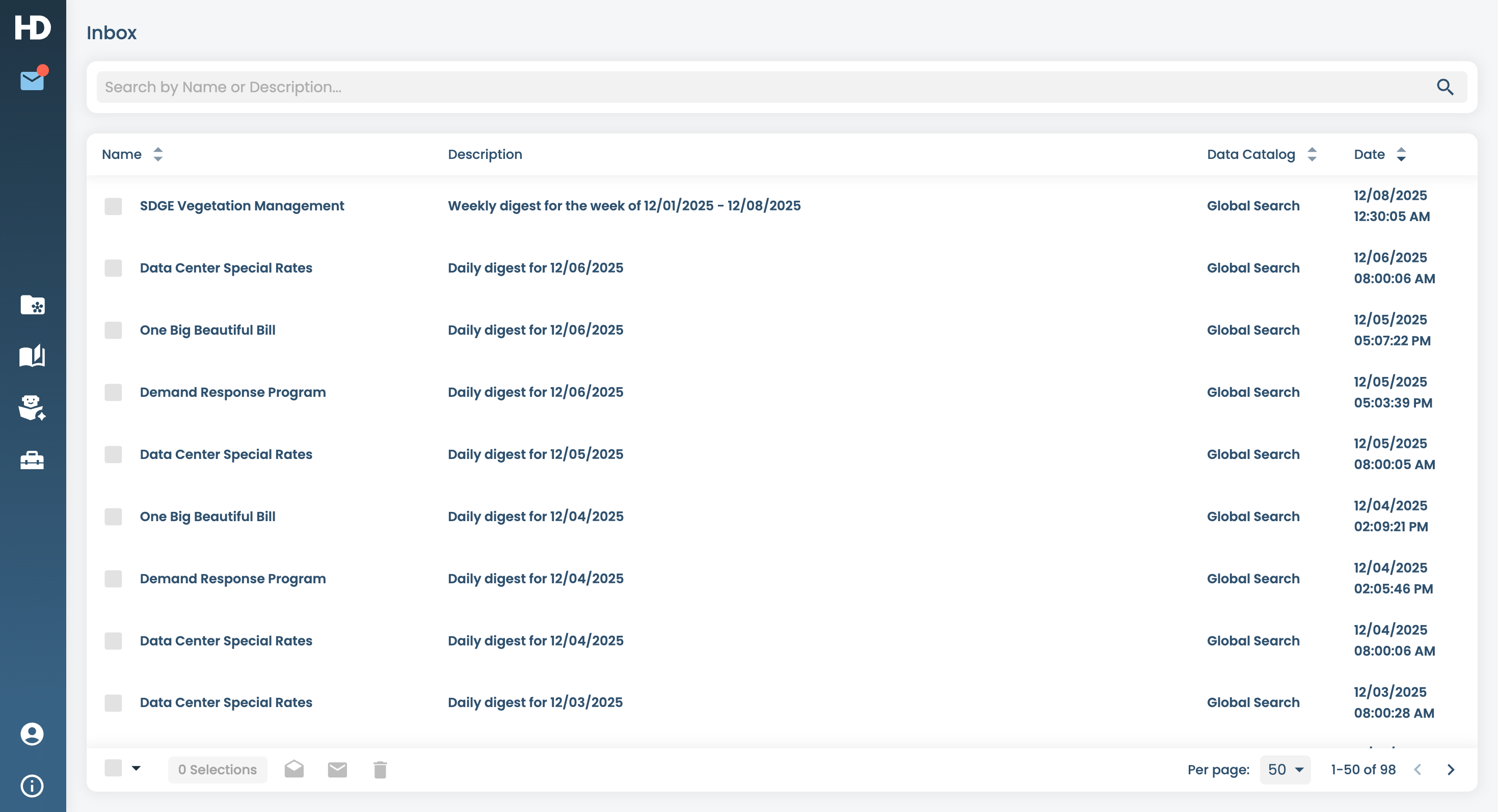
Notifications in the HData Platform are available in the Inbox from the main sidebar navigation menu.
Email Notifications
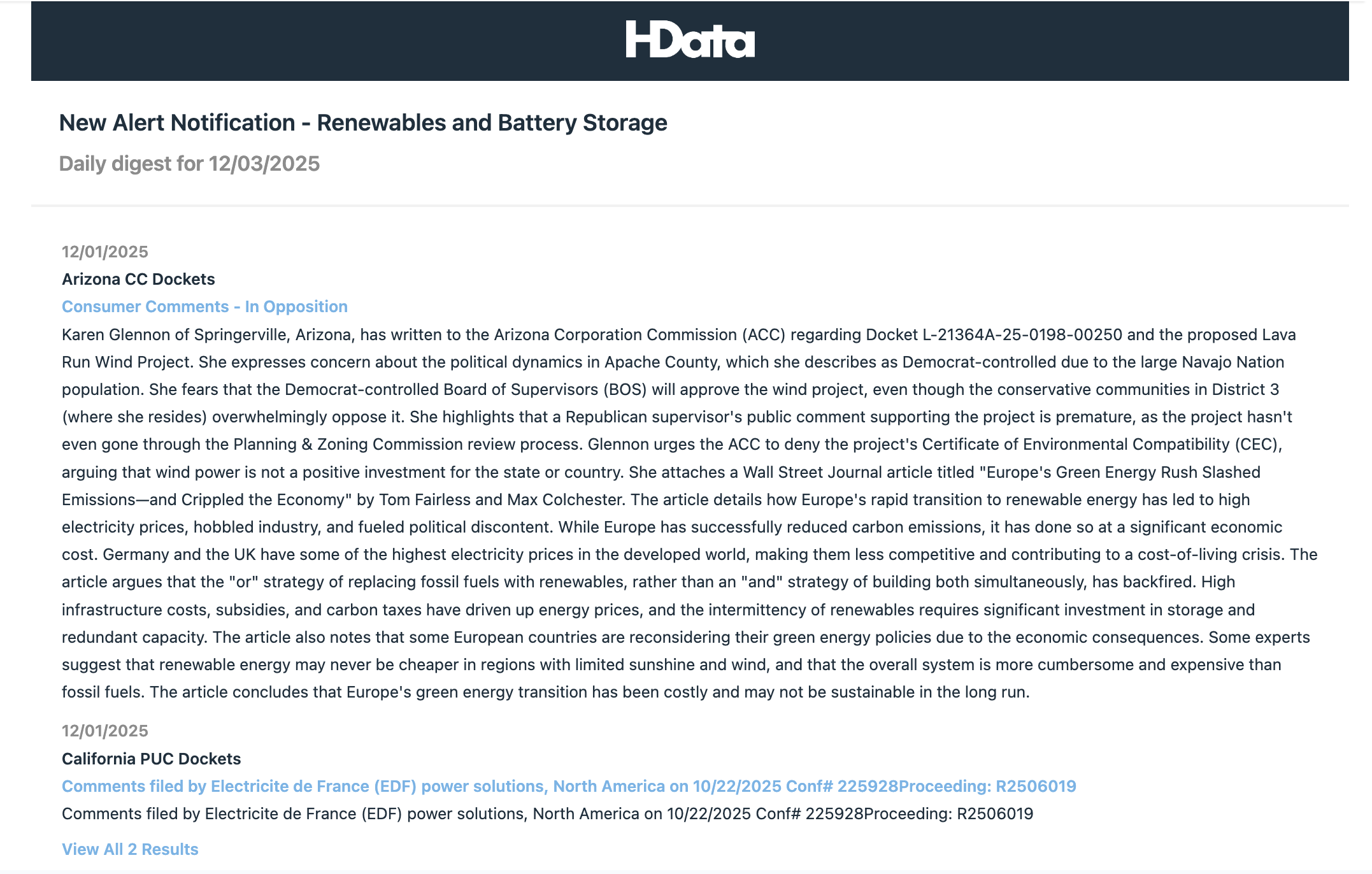
Notifications via email are sent upon your selected frequency. In the email, you will receive a summary of each filing and a link to the document that matches your notification criteria.
Edit Saved Searches and Notifications
To access a search you've saved, navigate to Data Hub > My Drive > Saved Content. Under Saved Content, you can view all saved searches by name. The Item Type is displayed as Saved Search. Click the saved search to view it directly in the HData Library.
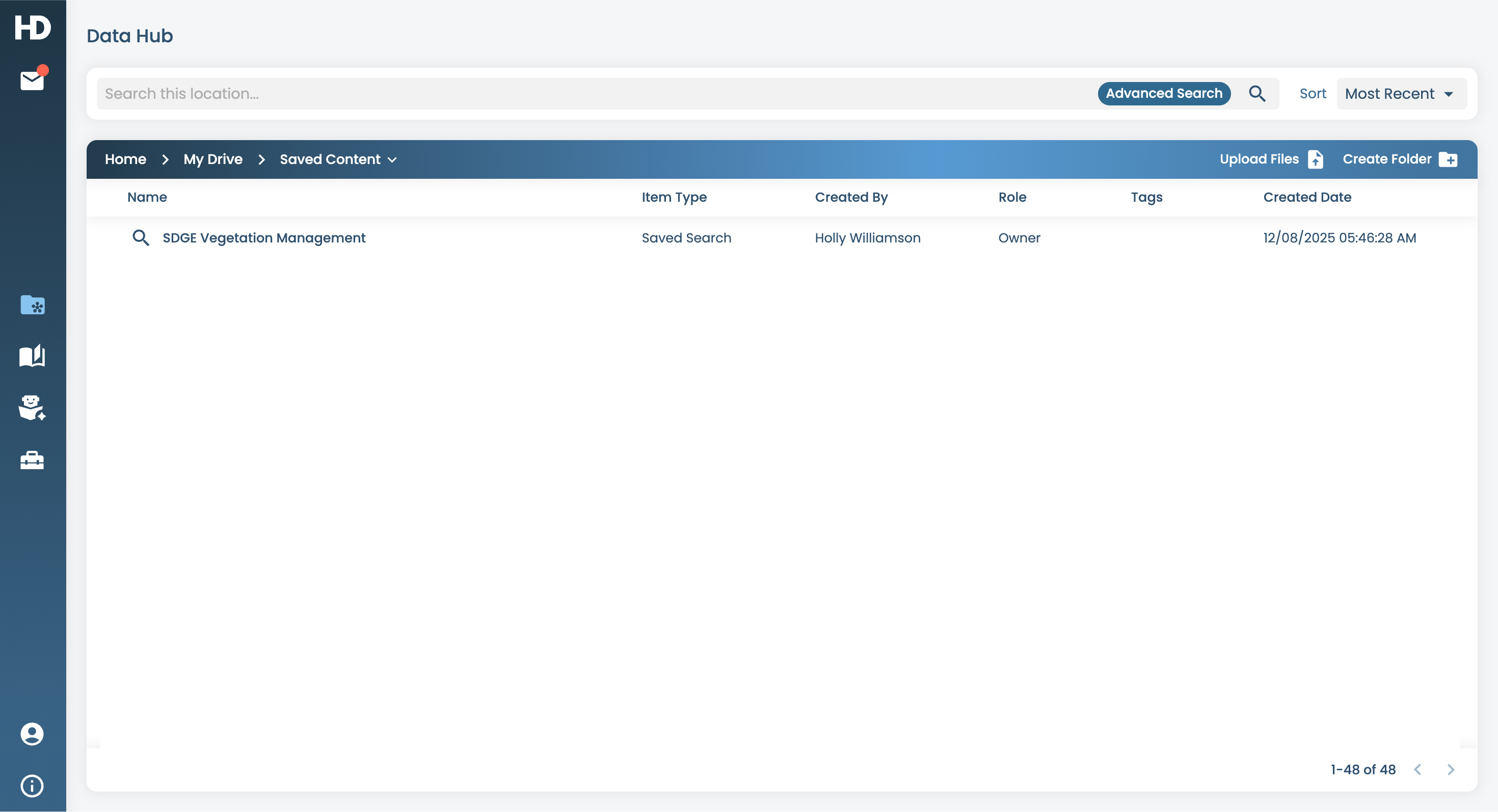
To edit your saved search criteria, make changes directly within the HData Library. Save your changes by following the same steps you used to create your saved search. This will create a new saved search under a new name.
To delete your previous saved search, right click on the Actions menu next to the saved search in the Data Hub view. Select Move to Trash.
To edit your saved search name or description, to turn notifications off, or to edit notification frequency, right click on the Actions menu next to the saved search in the Data Hub view. Select Edit Search.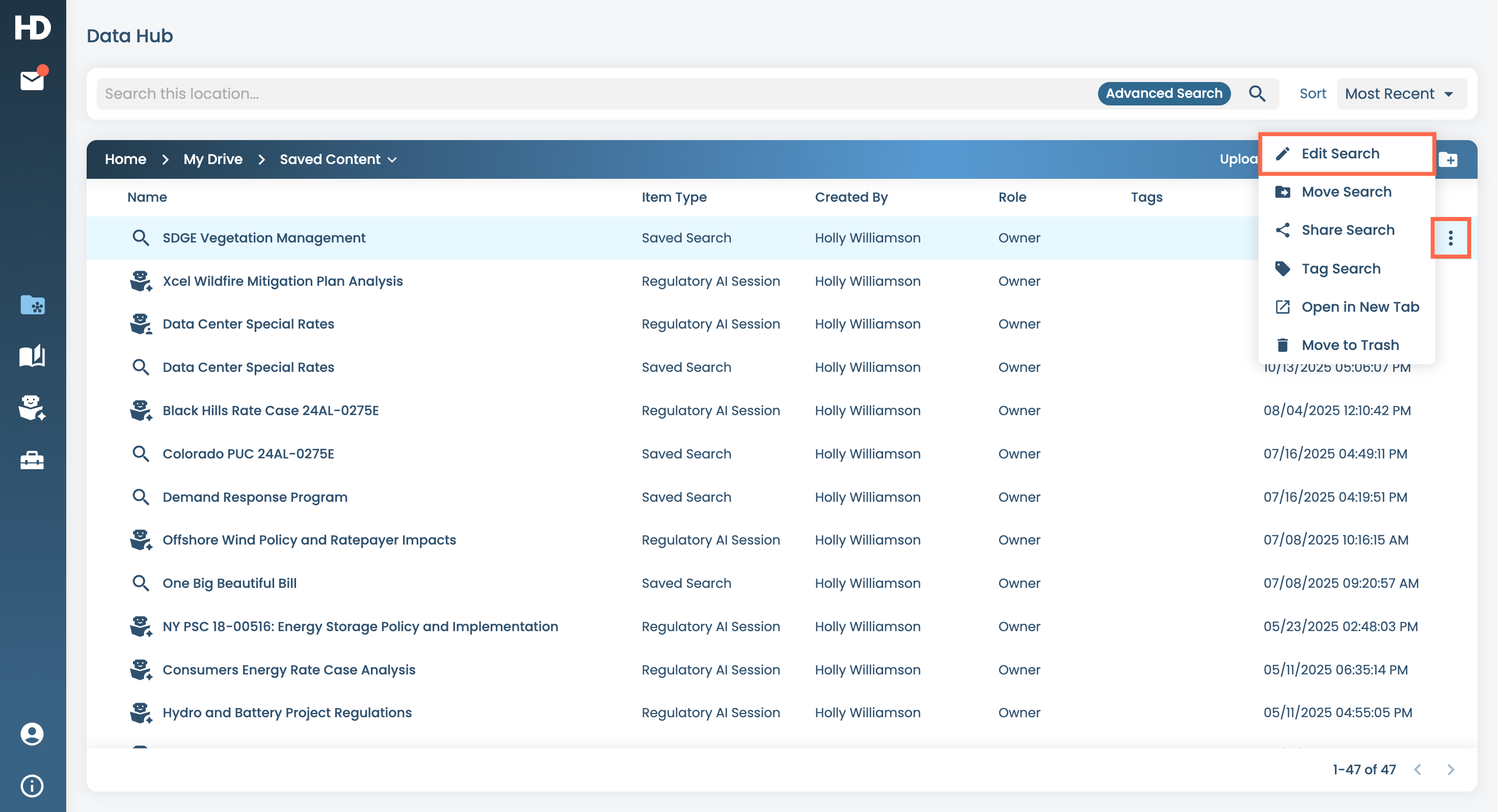
Additional Support
Please contact HData Support at support@hdata.com or contact your Customer Success Manager with additional questions or for training needs.